| |
How to locate the Test module
On the top of the form you will find a navigation panel with 5 round buttons namely Tips, Tutor, Test, Score and Help.
Move your mouse cursor to the "Test" button and left click.
The Test module will now appear.
Overview
The test module can be used as a practical means of measuring your Sign Language vocabulary knowledge.
Tests can be conducted on different categories.
In short, a video will be played representing a sign.
You will be provided with four possible answers.
Select the word which corresponds best to the sign that has been played.
Note: When a test is in progress you will need to click "Stop" to start a new test.
Starting a Test
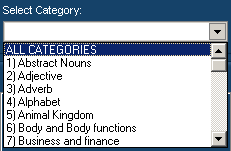
To begin a test, select a category.
In the top left corner, click on the drop down box down arrow  and select a test from the list. and select a test from the list.
See image:
Making a choice
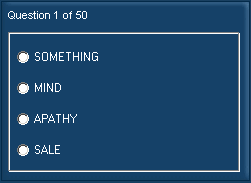
For each question you will be provided with four possible answers.
On the right hand side of the form you will see a question box which contains these possible answers.
To give your answer, left click with your mouse on any one of the four options.
See image:
Proceed to the Next Question
After you have selected a category the first question's video will be played automatically.
When you select an answer, the program notifies you whether it was correct or incorrect  . .
To proceed to the next question, left click on the "Next" button.
See image (Note: You can click on the controls in the image for more information):
 |


