| |
How to locate the Tutor module
On the top of the form you will find a navigation panel with 5 round buttons namely Tips, Tutor, Test, Score and Help.
Move your mouse cursor to the "Tutor" button and left click.
The Tutor module will now appear.
Working with the Mouse
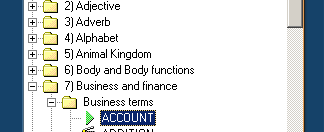
On the left side of the form you will find a "treeview" which contains several items.
Simply double left click on any item to expand it.
Items are contained within categories and sub-categories.
Categories and sub-categories can easily be identified by a yellow folder  . .
Working with the Keyboard
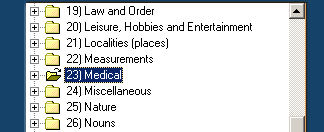
To use the keyboard for navigating through the treeview on the left side of the form, the treeview must have "input focus". To
give it input focus, repeatedly press the <TAB> key to move the input focus between all the different components in the form.
When the treeview has input focus the selected item will be colored in blue. See image: (note: you can click on the controls in the image):
The player controls
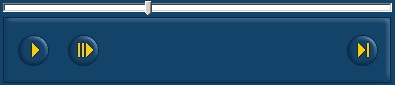
The player control panel contains "Play", "Next" and "Slow Play" buttons.
Click on a sign in the treeview on the left to play the video.
To replay a selected sign, simply left click the play button. You can either click on the video or on the "Next" button to
proceed to the next video.
To play a video in slow motion, click the "Slow Play" button.
Another advanced play function is the frame-by-frame playing which you can control by dragging the needle of the slider bar
to the left or right. Doing this will put you in full control of the playing speed.
See image:
How to use the Search
Find any sign in a snap using one of the 3 search methods:
1. Entire Words Only.
The search function will only return exact matches.
For example, using "tree" as a search phrase.
The search function will NOT regard "trees" as a match.
2. Words Begin(ing) With.
All words that match the search phrase entirely AND/OR all words that START with the search phrase will
be regarded as matches.
For example, using "Pen" as a search phrase.
The search function will regard, "Pen", "Pens" and "Pencil" as matches.
3. Words End(ing) With.
All words that match the search phrase entirely AND/OR all words that END with the search phrase will be
regarded as matches.
For example, using "Day" as a search phrase.
The search function will regard "Day", "Holiday" and "Birthday" as matches.
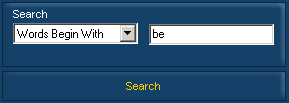
After selecting the search method, type the search phrase in the input box.
Now left click the "Search" button OR hit the <RETURN> key on your keyboard.
You will be notified if no match were found.
If a match was found, the treeview will be filtered to only show the matching items.
You can reset the treeview's contents by simply left clicking the "Search" button again which will be labeled: "Reset".
By the way, searches are not case-sensitive therefore "tree" is the same as "TREE".
See image:
Download the demo version today.
|


